Server Shutdown Notifications
Before a running server is stopped, JupyterHub.nrw shows you a notice so you have time to save your work. This page explains when the notice appears, what it looks like, and what to do when you see it.
Why your session can be stopped
The notice covers two situations:
- Maximum session time. Every server is stopped 8 hours after it starts, even if you are actively using it. This limit is known from the moment your server starts, so the notice appears only in the final hour before the deadline. See How long can sessions run? for the full policy.
- Maintenance. From time to time the servers behind JupyterHub.nrw need maintenance, and your session may have to be stopped so the machine it runs on can be updated. You cannot predict when this happens, so the notice appears as soon as the maintenance is scheduled, which can be anywhere from about 1 to 10 hours ahead.
Inactive sessions are handled separately
Sessions are also stopped after a period of inactivity (60 minutes for students, 240 minutes for staff), as described in How long can sessions run?. That is a separate mechanism and does not show a countdown notice, because an inactive session is, by definition, one you are no longer working in.
What you will see
The in-app notice
Inside JupyterLab you see a red notice in the bottom-right corner. It stays on screen until you close it, so it will not disappear on its own while you are working.
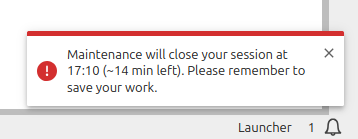
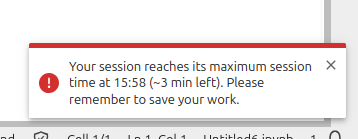
Each notice tells you the exact time your session will stop, shown as a 24-hour clock time (for example 10:20) in your own timezone, together with a rough indication of how much time is left (for example ~16 min left).
If you close the notice, it comes back later as a reminder. The reminders are spaced out when the deadline is still far away and become more frequent as it approaches, so you are not interrupted every minute. If you simply leave the notice open, it stays put and does not remind you again.
The browser notification
When your JupyterLab tab is in the background, for example because you switched to another tab or another program, your browser also shows a notification titled "Session closing soon" with the same message.
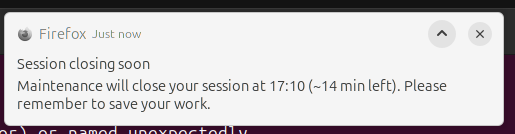
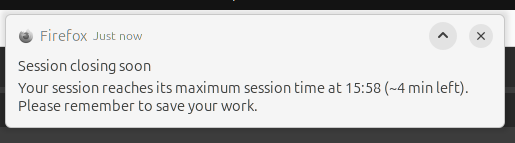
This browser notification appears once per shutdown.
Allow browser notifications
The browser notification only works if you have allowed notifications for jupyterhub.nrw. The first time you open a JupyterLab session, your browser may ask for this permission, and you need to allow it. If you missed that prompt, declined it, or blocked notifications earlier, you can turn them back on in your browser's site settings for jupyterhub.nrw.
Even if browser notifications are off, you still see the in-app notice whenever your JupyterLab tab is open, so you do not miss a shutdown.
What to do
Save your work. Files in your home directory are safe and remain available after the server stops. What is lost is everything that only exists in memory: running computations, variables, and the state of your open kernels.
- For maintenance, you can keep working until the time shown in the notice. Just make sure your work is saved before then.
- For the maximum session time, the same applies: save before the time shown.
After the server has stopped, you can start it again from the Hub Control Panel and continue working. If you need to restore in-memory state, re-run your notebook so your variables and results are recreated.
Good to know
- The times in the notice are shown in your own timezone, and the "time left" figure is approximate.
- If a sooner shutdown becomes relevant while an earlier notice is still counting down, the notice switches to the nearer deadline so the closest one is always the one you see.
- In the rare case that the maintenance time cannot be determined reliably, the notice says your session will stop soon instead of showing a clock time. Save your work and expect the shutdown shortly.