Data Storage
All user data, including notebooks, datasets, and other files, are stored in your personal directory within the JupyterHub.nrw environment. Each user has access to a home directory that is private and accessible only to the user.
Data Storage Limits
Each user is provided with a predefined amount of storage in their home directory. Please note that the storage limit is 10 GB. If you require more storage, you can either use external storage options such as Sciebo, or request additional storage. See the FAQ for more information. IF your storage usage exceeds the allowed storage limit, please consider using Rescue Mode.
External Storage Options
Sciebo Integration
In addition to your home directory, Sciebo is already integrated into JupyterHub.nrw as external storage. Data can be stored in Sciebo and retrieved directly from the JupyterLab environment.
After connecting your Sciebo account and starting your server with the Sciebo option enabled, your Sciebo files are mounted directly inside your Jupyter server under:
/mnt/cloud/sciebo
Sciebo and the related NRW-wide services as research infrastructure
Sciebo is available as external cloud storage in JupyterHub.nrw, ideal for large datasets, sharing, and backups beyond your 10 GB home directory. Sciebo, JupyterHub.nrw and HPC.nrw complement each other as NRW-wide research infrastructure services. Sciebo provides cloud storage and data sharing, JupyterHub.nrw provides interactive notebook-based working environments, while HPC.nrw provides access to high-performance computing resources for compute-intensive workflows. Together, these services support research workflows from data storage and interactive analysis to large-scale computation.
Connecting your Sciebo account
You can connect your Sciebo account directly from the spawn page.
If your Sciebo account is not connected yet, the Sciebo checkbox is inactive and a Login button is shown at the right side.
To connect your account:
-
Click Login at the right side of the Sciebo cloud storage option on the spawn page.
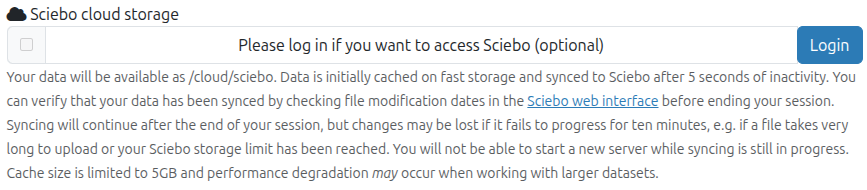
Using Sciebo cloud storage in JupyterHub.nrw -
You are redirected to Sciebo.
-
If you are not already logged in to Sciebo, log in with your Sciebo account.
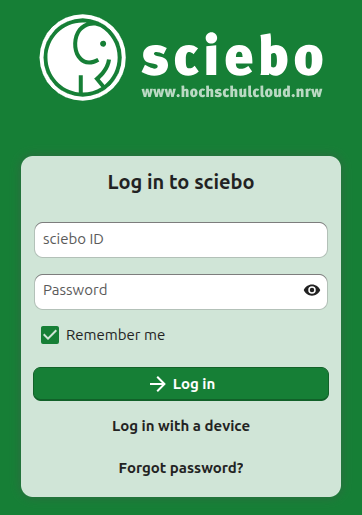
Sciebo login page -
On the Sciebo page titled Connect to your account, click Log in.
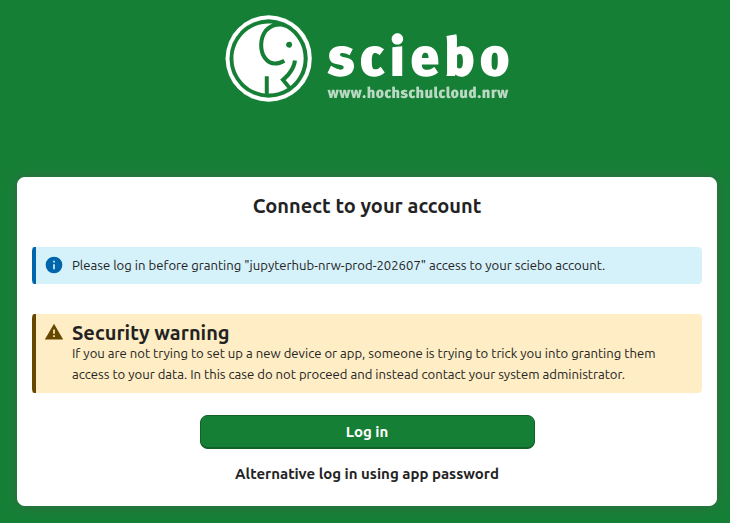
Sciebo connect to your account page -
On the following Account access page, click Grant access.
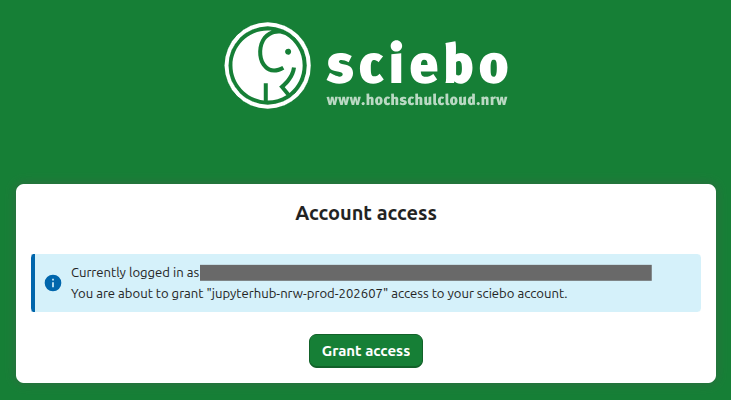
Sciebo grant access page -
You are redirected back to JupyterHub.nrw.
After this, the Sciebo checkbox is activated automatically and the Login button changes to Logout.
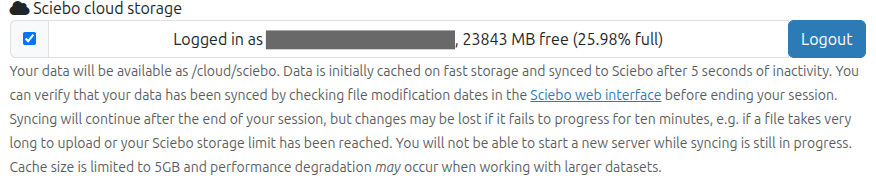
You can then start your server with Sciebo access enabled.
Disconnecting Sciebo
You can disconnect your Sciebo account from JupyterHub.nrw on the server start page.
Click Logout at the right side of the Sciebo option to remove the connection between JupyterHub.nrw and your Sciebo account.
If your server is already running, restart it after disconnecting or reconnecting Sciebo so that the change is applied to the running environment.
Recommendations for Users
- Back up important notebooks and datasets regularly to an external service such as Sciebo or another cloud provider. Store large files and datasets in Sciebo rather than in your home directory, the storage capacity of which is limited to 10 GB.
- Use version control systems like Git to track changes to your notebooks and code, especially when collaborating with others.
- Organize your files and directories so that you can quickly find important data.